



Replacing
Choose Search & Replace on the search screen and enter the replacement text. An empty replacement deletes the matched text.
Preview first
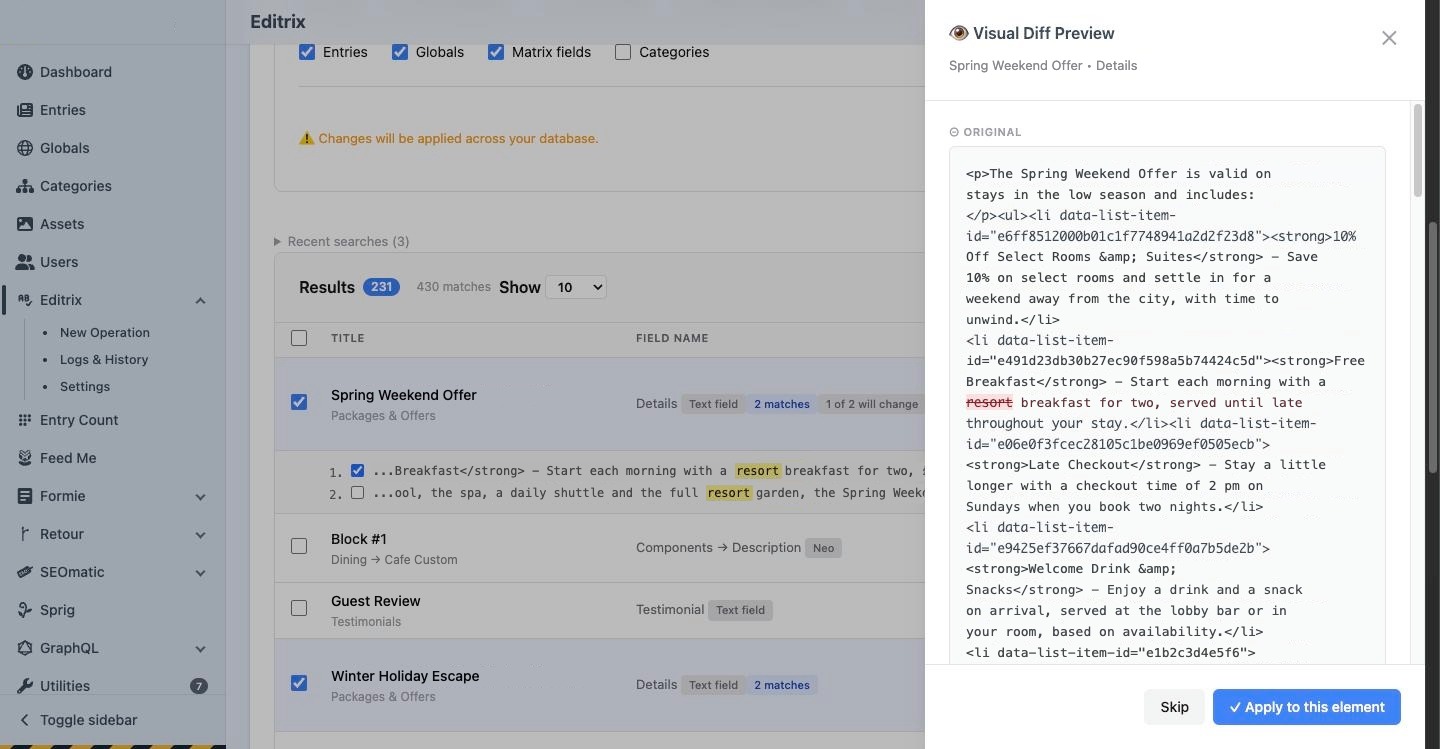
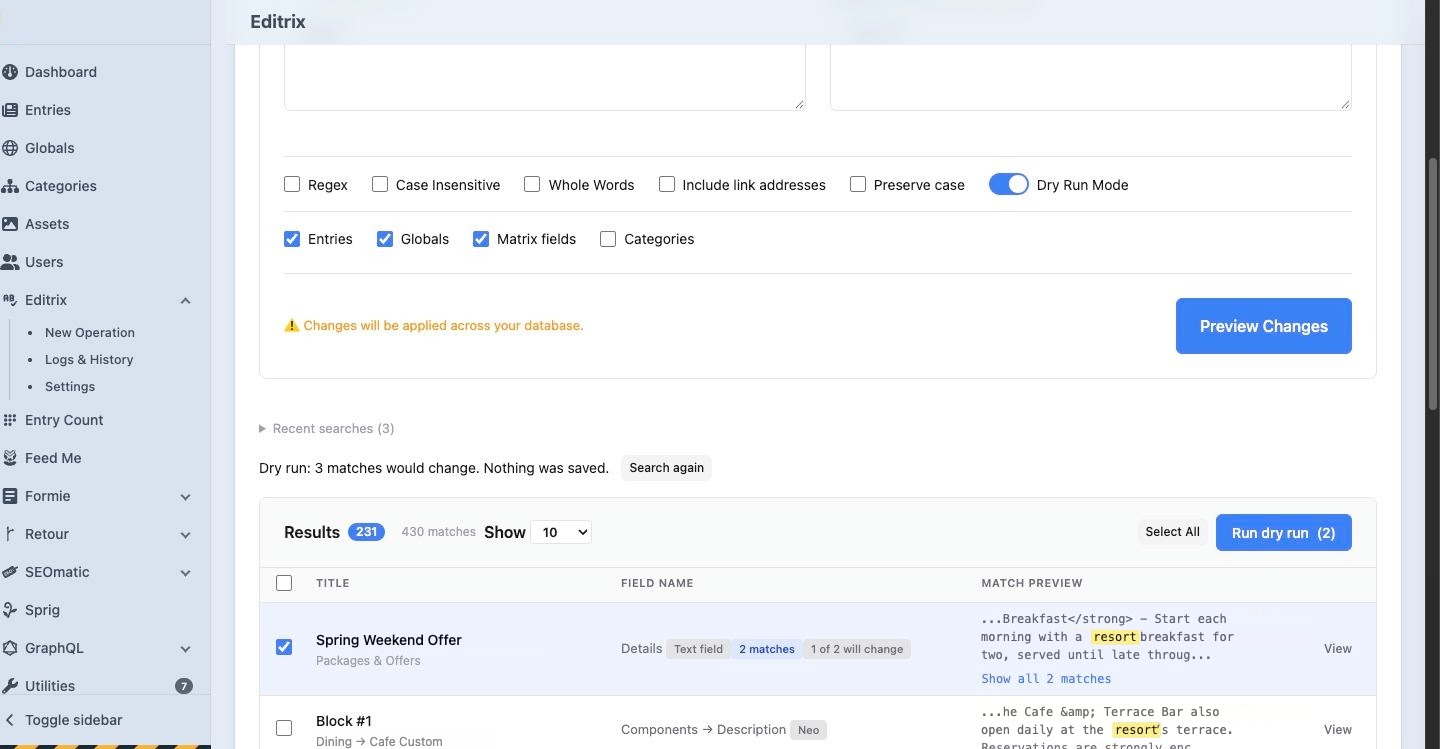
Open any result row to see the original text and the proposed text, with each changed word marked. Dry Run Mode goes further: turn it on, choose the rows and click Run dry run. Editrix works out the whole replace and reports how many matches would change and which rows it would skip, and why. It saves nothing, writes no log, asks for no confirmation and leaves the rows on screen as they were. It runs inside the request and is never queued, so it covers at most 100 rows; select fewer, or narrow the search.
Replace
- Search, then select the rows to change.
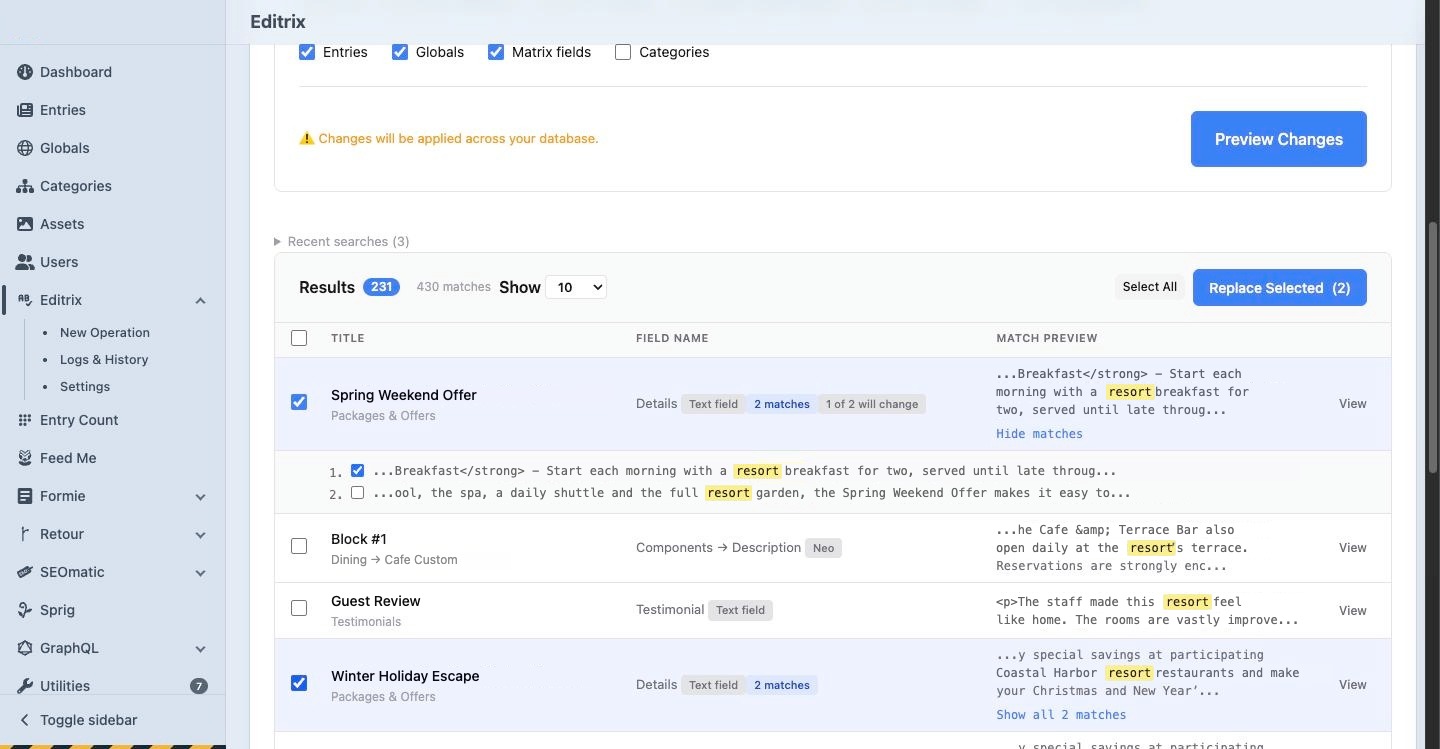
- Click Replace Selected.
Selecting a row replaces every occurrence in that field that can be replaced. To leave some out, open the row's matches (Show all matches) and clear the box of each one to keep. The row then reads "2 of 3 will change", the preview shows the result without them, and the log counts only what changed. Only the first 50 matches of a row are listed, so those are the ones that can be left out.
In regular expression mode, the replacement can use capture groups such as $1. Outside regular expression mode the replacement is inserted exactly as typed, so a $ or a backslash is never treated as a reference.
With Include link addresses on, a replace also changes the href and src of links and images in rich text fields, and only the text between the quotes. Turning it on for a domain change updates the link text and the link in one pass.
Preserve case (Pro) gives the replacement the capitalisation of what it replaces: "widget" to "gadget" also turns "Widget" into "Gadget" and "WIDGET" into "GADGET".
Confirmations
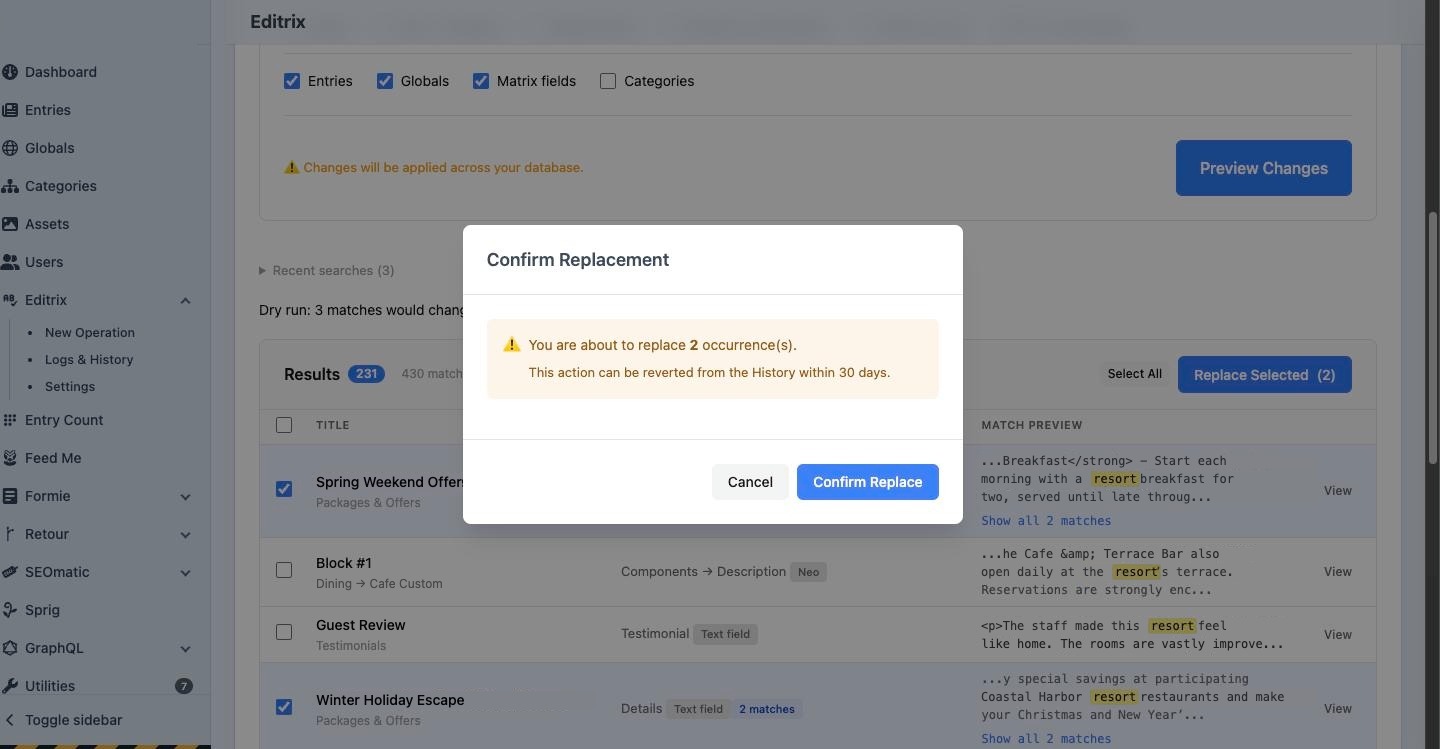
A replace of more rows than bulkConfirmationThreshold (default 100) asks you to type REPLACE before it runs. With Production Safe Mode on (Pro), every replace in a production environment asks the same.
Limits
One replace changes at most 200 rows on Standard and 5,000 on Pro. A replace over the limit is refused, never cut short, so what changes is always what you selected. maxRowsPerReplace can lower the limit, not raise it.
Large replaces
A replace of more than 25 rows (replaceQueueThreshold) runs in the queue. Saving an entry takes about half a second, and a web request that outlasts the server's time limit would be cut off partway. The screen shows progress and a Cancel button. If you reload or leave and come back, the panel returns and ends with the usual summary.
What is skipped or refused
- Changed since search. If a field was edited after your search, its row is skipped and marked "Changed since search" instead of being overwritten with older content. Search again to see the current text.
- Protected content. Matches in a field listed in
protectedFields, or in an entry of a section listed inprotectedSections, appear in a search but are skipped by Replace, even when it is called directly. - Text split by formatting. In a rich text field, a phrase that runs across an HTML tag, such as
Our <i>Featured</i> Offers, is found but marked read-only, because replacing it could break the markup. Change those by hand. - Entries you cannot edit. Replace follows Craft's permissions. A row in a section the user may not save is skipped and listed as "you can't edit this entry in Craft", even if it was sent to Replace directly.
- Required fields. A replace that would leave a required field empty is refused for that entry.
- Entries that cannot be saved. They are listed after the replace with the reason, and left unchanged.
How entries are saved
Entries are saved without validation or propagation. Content that predates a field's "required" setting can still be corrected, and each site's row is replaced on its own. Set validateOnReplace to true to validate instead. Each replace leaves a revision on the entries it changes, with a note such as "Editrix replace #12" and the user who made it; set createRevisionsOnReplace to false to skip that.
Afterwards
The summary shows how many matches were replaced and links to Logs & History. The replaced rows stay on screen, marked as replaced, so you do not need to search again. See Logs and revert to undo it.